User Guide
1. What This App Does
StableSteering is a research prototype for interactive image-generation steering. Instead of only rewriting prompts, it lets you evaluate candidate image variations across multiple rounds and provide feedback so the system can update its steering state.
The current version runs with a real Diffusers backend by default. The mock generator exists only inside explicit test harnesses.
The app also records backend and frontend trace events so session behavior is easier to inspect while you work.
If you are learning the system for the first time, start with student_tutorial.md.
2. Main Workflow
The basic flow is:
- enter a text prompt
- start a session around that prompt
- generate a round of candidate images
- provide feedback with the active mode controls
- submit feedback
- generate the next round
- review the session replay
Generation and feedback run asynchronously. That means the page stays responsive while the backend job is in progress.
3. Pages
Home
The home page shows:
- the project overview
- the current experiment list
- a link to start a new session
Setup
The setup page lets you set:
- prompt
- negative prompt
- experiment name
- experiment description
- a per-session YAML configuration block
That YAML block controls the sampler, updater, feedback mode, seed policy, candidate count, image settings, and other session-level strategy values.
Session
The session page lets you:
- generate the next round
- review current steering state
- inspect candidate images
- provide mode-specific feedback to candidates
- submit feedback
- open the replay page
- open the trace report
- inspect the live frontend trace panel
Replay
The replay page shows:
- all completed rounds
- each round's candidates
- the stored update summary
- the persisted outcome of submitted feedback
4. How to Use the Current MVP
Recommended usage:
- open the setup page
- start from a prompt you can easily recognize
- keep the default settings for your first run
- generate the first round
- use the currently selected feedback mode to express a clear preference
- submit feedback
- generate another round and compare how the state evolves
4.1 Progress and Status
When you generate a round or submit feedback, the session page shows:
- a progress bar
- a status label such as queueing, running, completed, or failed
- inline error text if something goes wrong
The status text is phase-aware. You may see messages such as:
Checking session readinessSampling 5 candidate directionsRendering candidate images on the model backendNormalizing and validating user preferencesUpdating the steering model from your feedbackRefreshing trace report and replay data
While work is running:
- the relevant button is disabled
- the current page remains usable
- the page refreshes automatically after success so you see the next state
- if the requested action is no longer valid, the app reports that conflict immediately instead of queueing a doomed background job
This is especially helpful with the real Diffusers backend, where image generation can take a noticeable amount of time.
5. Understanding the Candidate Cards
Each card shows:
- a generated candidate image
- the candidate identifier
- the sampler role
- the steering vector
z - feedback controls for the active mode
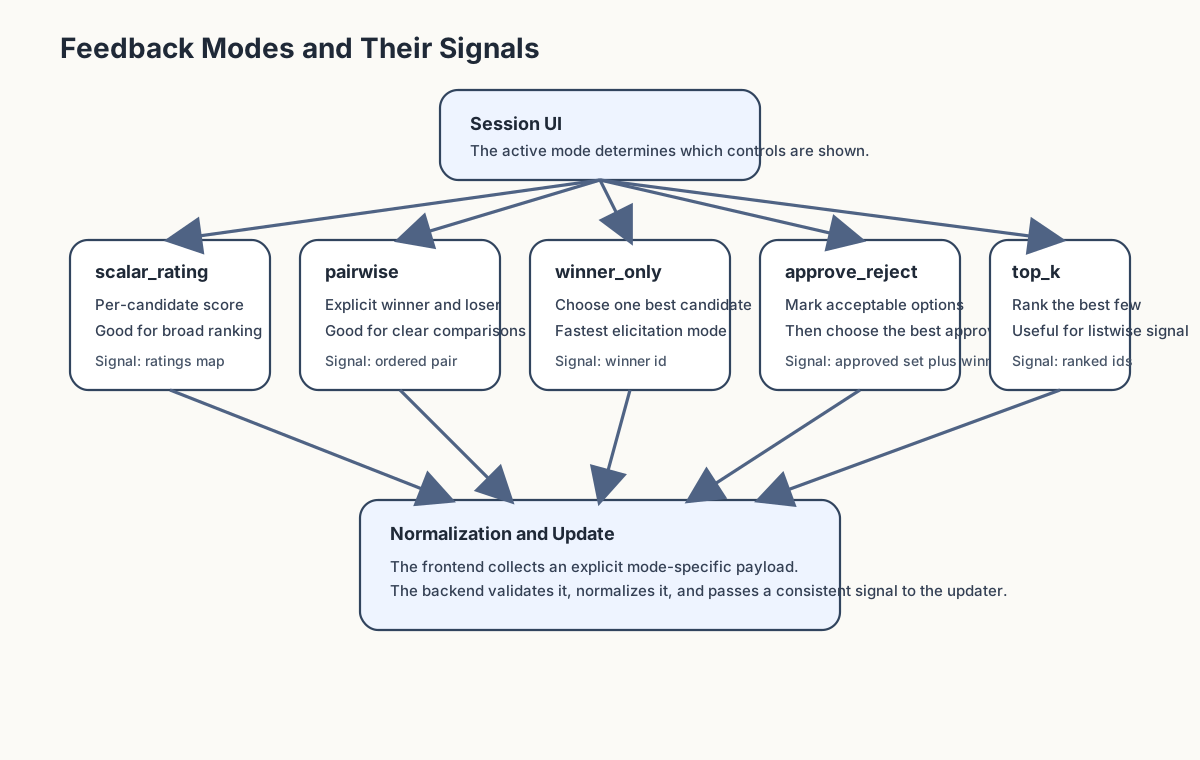
The visible controls change with the selected feedback mode:
scalar_ratingshows clickable one-to-five star controlspairwiseshows explicit winner and loser choiceswinner_onlyshows a single winner choiceapprove_rejectshows approval choices plus a preferred approved winnertop_kshows explicit rank inputs
6. Understanding Replay
Replay is useful for:
- reviewing how many rounds were run
- seeing which candidates were shown
- checking which candidate won each update
- comparing session progression over time
- confirming what feedback was stored for a round
7. Understanding Trace Reports
Each session also produces a backend-saved HTML trace report. It combines:
- proposed images for each round
- backend events for generation and feedback
- frontend actions captured during the run
- normalized user preference outcomes
- runtime backend and device diagnostics
You can open it from the session page, or directly at /sessions/{session_id}/trace-report.
For a full worked example, generate the sample bundle with:
python scripts/create_real_e2e_example.py
That writes a complete example run under output/examples/real_e2e_example_run/.
8. Current Limitations
This prototype currently:
- requires the real Diffusers backend and a CUDA-capable GPU for normal app startup
- supports only a minimal set of interaction flows
- does not yet expose advanced controls from the full specification
- stores data locally
- is meant for one local user workflow
Trace data is persisted locally under data/traces/.
Per-session reports are persisted under data/traces/sessions/<session_id>/report.html.
9. Best Practices
- start with short, concrete prompts
- keep candidate count small while learning the workflow
- use replay after each session to understand what changed
- use the trace report when you want one readable record of images, actions, and preferences
- treat this as a research tool, not a production image editor
- use the diagnostics page when you want to confirm the app is actually running on GPU